BidLight + Procore setup guide
Install once, connect your account, link the project, and every shop drawing you approve in BidLight is delivered to Procore.
Before you start
- A BidLight account at app.bidlight.com.
- A Procore user with access to the project's Documents tool.
- A Procore company admin, for the one-time install.
Step by step
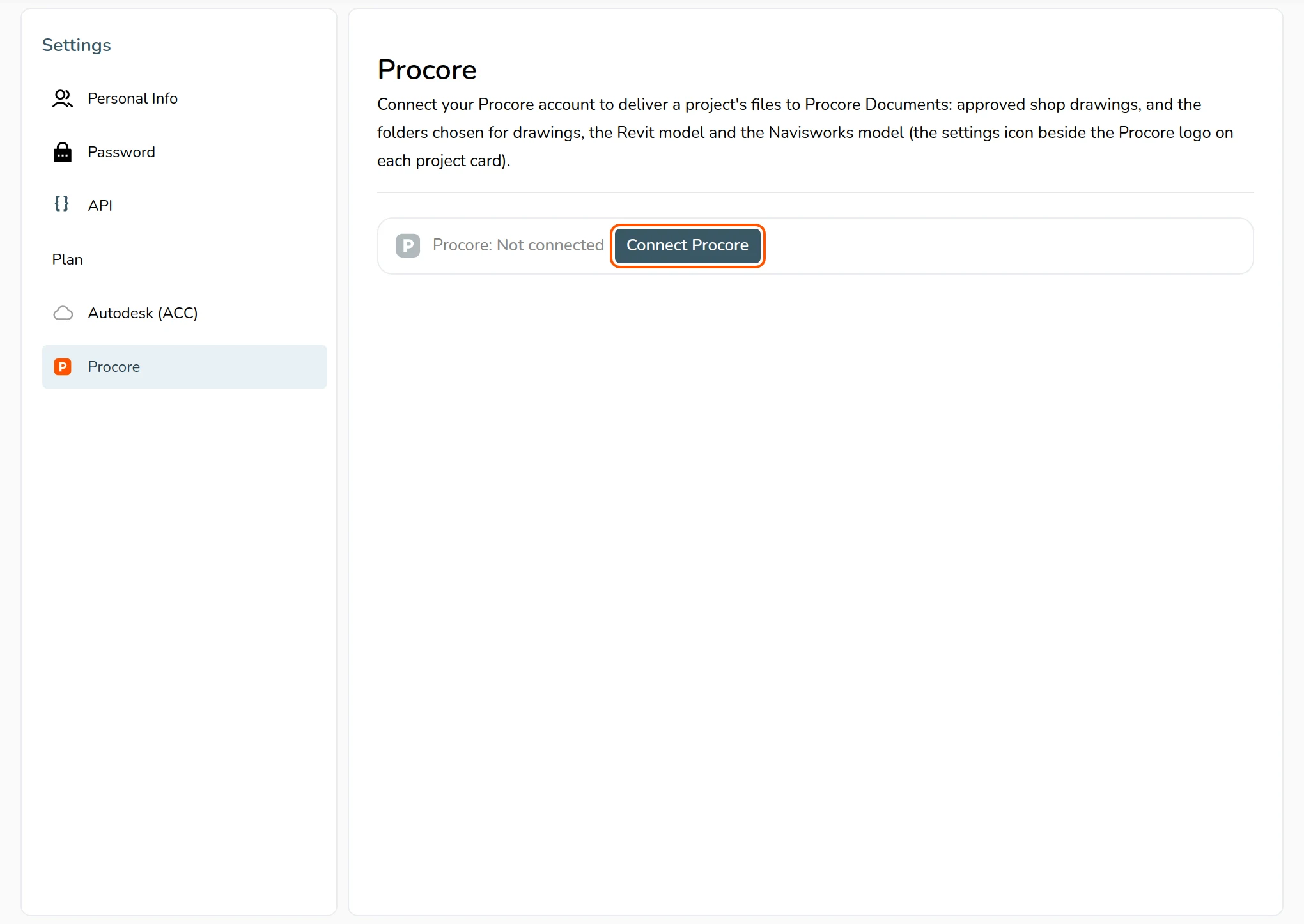
Where to connect Procore in BidLight
Install the app
Company admin, once per company. Procore Company Admin, App Management, Install App, then install the BidLight app using the version key from BidLight. The Installation Successful dialog shows this guide and its notes.
Connect your account
In BidLight, open My Projects and press Connect Procore in the top strip, or use Profile, Procore. Sign in to Procore and press Allow. The Procore logo turns orange once you are connected.

Link a project
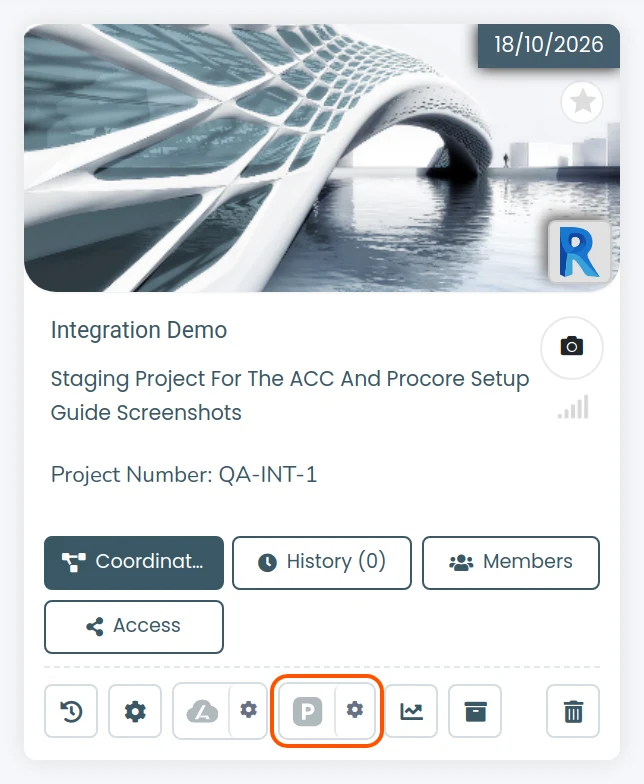
On the BidLight project card, click the Procore logo, choose the company, choose the project, then press Link this project. A green check appears on the logo.
Choose delivery folders
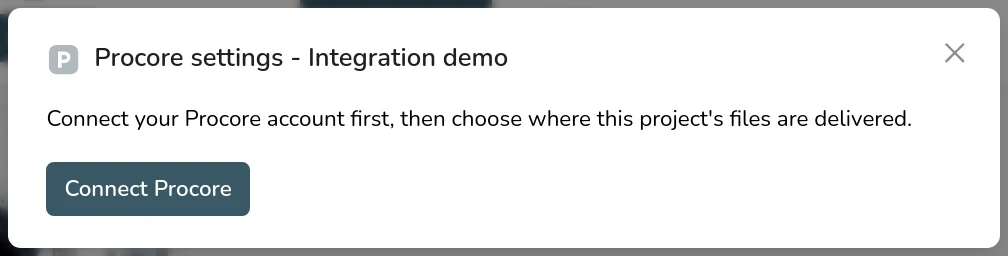
Click the settings icon beside the Procore logo. Pick a Procore Documents folder for each kind of file - Shop drawings, Drawings, the Revit model and Navisworks coordination models - and press Use this folder. Each project keeps its own folders.
Turn on delivery
In the same window, or on the Shop Drawings page where the bar reads Deliver approved drawings to, tick Procore.

What happens from then on
Every shop drawing revision you approve is uploaded to that folder. The file keeps its name, so each revision becomes a new version of the same Procore file rather than a second file. The delivery e-mail goes out as before, and the Shop Drawings page shows sent and failed counts with a Retry on any failure.
How it flows
What the integration covers
One connection per company, one link per project, and a folder for each kind of file.
Into BidLight
Out to Procore
Disconnecting
Use My Projects, Disconnect, or uninstall the app in Procore App Management. Files already delivered to Procore stay where they are.
If something looks wrong
- A grey logo means the account is not connected.
- A greyed box on the Shop Drawings page means the folder is not set or the account is not connected. The tooltip says which.
- A failed upload shows its reason on the Shop Drawings page, next to the Retry.
Still stuck? Contact support, or see the other integration guides.